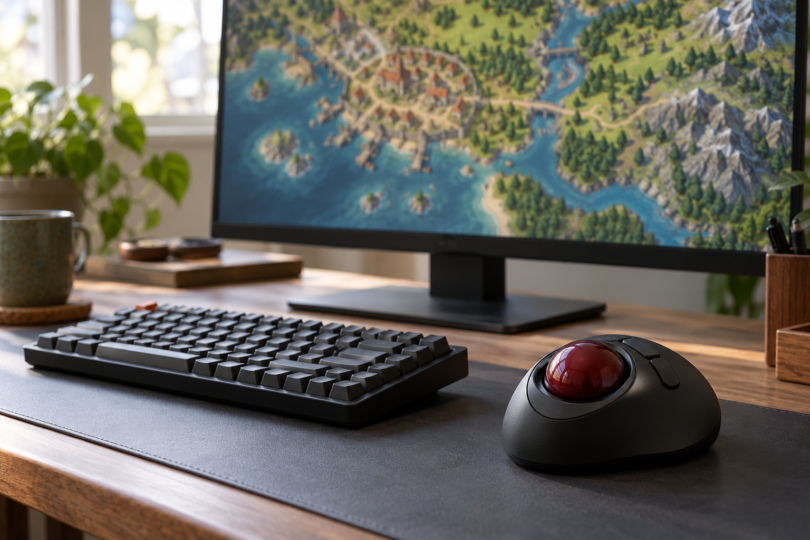

The best trackball for gaming depends first on whether you want to steer with your fingers or your thumb. The ELECOM HUGE M-HT1URBK is our wired finger-control pick; the Logitech MX Ergo S is the alternative for wireless thumb control and adjustable tilt. Both deserve a closer look for a stationary pointing setup, but neither is presented here as a tested competitive-gaming winner.
These recommendations compare documented hardware, connection options and configuration requirements. We have not measured click latency, aiming accuracy, fatigue or gaming performance. Start with a returnable purchase if you are changing control styles; hand fit and learning preference cannot be settled by a specification sheet.
The two picks at a glance
| Pick | Why choose it | Exact version | Important limit |
|---|---|---|---|
| ELECOM HUGE | Large finger-operated ball and wired connection | M-HT1URBK, black, USB-A | Current Mouse Assistant support must match your OS; polling rate unverified |
| Logitech MX Ergo S | Thumb control, tilt and two wireless connection options | 910-007259, graphite, standard MX Ergo S | Published report rates are 125 Hz via receiver and 88–133 Hz via Bluetooth |
ELECOM HUGE: best for wired finger control
Choose the HUGE if a large finger-operated ball and a permanent desk connection are the appeal. ELECOM documents a 52 mm ball, eight programmable buttons, a scroll wheel and three sensitivity settings: 500, 1,000 and 1,500 DPI. The selected M-HT1URBK connects by USB-A cable; it is different from the similarly named wireless M-HT1DRBK.
Check the software before planning button assignments. ELECOM’s hardware page lists Windows 10/11 and macOS 10.12 or later among its supported systems, but the current Mouse Assistant 6 download pages for Windows and Mac are narrower: Windows 10/11, or macOS 13, 14 and 15. They list the M-HT1UR family. Basic pointer compatibility does not promise current customization support on every older or newer OS.
We would try this layout first for pointer-led strategy, simulation or slower-paced games, where finger steering and reachable buttons suit your personal workflow. That is a fit judgment, not a measured advantage. ELECOM’s reviewed documentation does not establish this model’s polling rate; the phrase “gaming sensor” does not fill that gap. Do not buy it on an assumed latency figure.

ELECOM HUGE Wired Finger Trackball, M-HT1URBK
As an Amazon Associate we earn from qualifying purchases.
Logitech MX Ergo S: best for wireless thumb control
The MX Ergo S suits someone who prefers moving the ball with a thumb. Its body tilts by 20 degrees, it has six customizable buttons, and its DPI button changes between tracking modes. Treat the sculpted shape and tilt as fit options to try; they are not a promise to prevent or treat wrist pain.
It connects through Bluetooth Low Energy or the included USB-A Logi Bolt receiver. USB-C is for charging, so do not mistake the charging socket for a wired USB pointing mode. The charging cable is not included in the standard package. Easy-Switch supports switching between two devices.
Logitech publishes a 125 Hz report rate for the wireless receiver and 88–133 Hz for Bluetooth. Those are manufacturer connection specifications, not our end-to-end latency measurements. If very high polling and competitive aiming are the deciding criteria, these specifications give little reason to replace a gaming mouse you already control well.
Logitech lists Windows 10/11 or later, macOS 12 or later, Linux and ChromeOS for receiver use; Bluetooth also lists iPadOS 15 or later and Android 12 or later. The current Logi Options+ page requires Windows 10 or later and macOS 14 or later for customization, a narrower Mac requirement than basic pointing support. Linux or tablet pairing does not establish equivalent button programming, and individual games still determine which inputs they accept.

How to choose for your games
Think through movement, camera control and frequently used commands separately. For a turn-based game, click placement may matter more to you than rapid camera sweeps. For an action game, test whether you can keep aiming while pressing the needed buttons. A high button count does not guarantee that every button is comfortable to reach or accepted by the game.
Use the official customization app only on its supported OS and check your game’s input settings and rules before depending on remapped actions. Avoid assuming that software macros, on-board profiles or console support come with either device. A USB-C-only computer also needs an appropriate way to connect the HUGE’s USB-A cable or Logitech’s USB-A receiver; Bluetooth is the MX Ergo S alternative.
Frequently asked questions
Are trackballs good for gaming?
They can suit people who want stationary pointer control, especially when the game fits their preferred finger or thumb movement. We cannot rank these against conventional mice for competitive accuracy without testing. Try the exact games and controls you use before committing.
Should I choose finger or thumb control?
Pick the HUGE for its large finger-operated ball and wired layout, or the MX Ergo S for thumb control and adjustable tilt. Neither style is automatically more accurate or more comfortable for everyone.
Is the MX Ergo S wired when charging?
Its documented pointing connections are Bluetooth and Logi Bolt. USB-C is a charging port, so a charging cable does not turn it into a wired gaming mouse. The standard package excludes that cable.
What polling rates do these models use?
Logitech lists 125 Hz over the receiver and 88–133 Hz over Bluetooth. We did not establish a documented polling figure for the wired HUGE. These figures, or their absence, should not be turned into invented click-latency measurements.
Can I program the buttons on any computer?
No universal support is established. Check ELECOM Mouse Assistant or Logi Options+ against your exact OS and model, then check how your game handles the mapped input. Connecting as a basic pointing device does not guarantee all customization features.