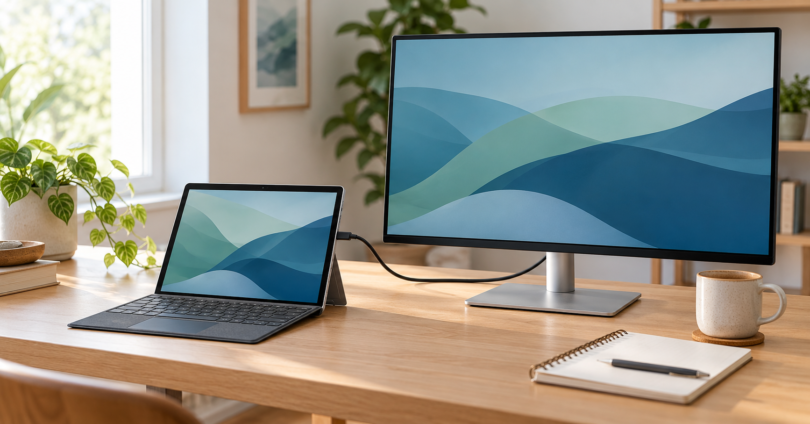

A good second monitor makes a Surface Pro easier to use for spreadsheets, writing and side-by-side windows. Our first choice for a permanent desk is the Dell P2725QE, which combines a 27-inch 4K panel with USB-C charging and a hub. The ASUS ProArt PA278QV suits buyers who want a conventional 27-inch 1440p display, including owners of an older Surface with Mini DisplayPort. For travel, the Lenovo ThinkVision M14d is the compact option.
These are recommendations based on manufacturer specifications and connection documentation, not hands-on performance tests. Check your exact Surface generation before buying: a USB-C connector, a Thunderbolt port and a Mini DisplayPort connection have different capabilities.
Best second monitors for Surface Pro at a glance
| Monitor | Best fit | Panel | Connection and trade-off |
|---|---|---|---|
| Dell P2725QE | A permanent desk with fewer cables | 27-inch IPS, 3840 × 2160, up to 100Hz | USB-C video and up to 90W charging; the Surface and connection must support the chosen refresh rate |
| ASUS ProArt PA278QV | General office work and an older Mini DisplayPort Surface | 27-inch IPS, 2560 × 1440, up to 75Hz | DisplayPort, Mini DisplayPort, HDMI and DVI-D; no USB-C video or laptop charging |
| Lenovo ThinkVision M14d | A second screen that travels | 14-inch IPS, 2240 × 1400, 60Hz | USB-C DisplayPort Alt Mode; needs power from the host or an appropriate separate USB-C supply |
1. Dell P2725QE: best for a USB-C desk setup
The P2725QE is the pick for someone who regularly turns a Surface into a desktop workstation. Its 4K resolution provides more detail than a 1440p panel, while the adjustable stand offers height, tilt, swivel and pivot. Windows scaling lets you use the sharper panel without making text uncomfortably small.
Dell specifies a USB-C upstream connection with DisplayPort 1.4 Alt Mode, USB data and up to 90W Power Delivery. Connect a compatible Surface to that upstream port with a suitable video-capable USB-C cable, and the monitor can handle the picture and charge the computer. The hub includes USB-A ports and Ethernet. The downstream USB-C socket is a different connection; it is not the video input for your Surface. See Dell’s P2725QE specifications and its model-specific user guide.
Why choose it: a large, sharp workspace, useful stand adjustments and a single upstream cable for video, data and charging on a compatible USB-C Surface.
What to watch: 100Hz is the monitor’s capability, not a promise for every Surface or dock. Confirm the complete connection supports 3840 × 2160 at the refresh rate you want. Start at 4K/60Hz if your combination is uncertain. Also check the exact model: P2725D and P2725DE are different 1440p models. The P2725QE does not have the P2725DE’s DisplayPort output for daisy-chaining.
An older Mini DisplayPort Surface can use the Dell’s DisplayPort input with the appropriate cable, but it will still need its own charger. That removes much of the reason to pay for a USB-C hub monitor.
2. ASUS ProArt PA278QV: best conventional 1440p option
The PA278QV makes sense when you want more room for documents and web pages without building your purchase around USB-C charging. Its 27-inch 2560 × 1440 panel, 150mm height adjustment, pivot, tilt and swivel provide a flexible desktop setup. ASUS specifies 100% sRGB and Rec.709 coverage and factory color calibration; those are manufacturer claims, not our measurements.
Its inputs include full-size DisplayPort, Mini DisplayPort, HDMI and DVI-D. A Surface Pro 6, for example, has Mini DisplayPort, so a correctly chosen Mini DisplayPort-to-DisplayPort cable offers a straightforward video route. A USB-C Surface needs a video-capable USB-C-to-DisplayPort or HDMI connection instead. Check the cable and port limits for the desired resolution and refresh rate.
Why choose it: a useful middle ground for office work, a well-adjustable stand and inputs that accommodate both older and newer Surface connection types.
What to watch: it cannot charge a Surface through the video cable. Its USB hub uses a separate USB Type-B upstream connection; the USB-A sockets are not display inputs. This is the PA278QV, not the similarly named PA278CV USB-C model. ASUS rates the panel up to 75Hz, but 60Hz is a sensible baseline for routine desktop use. See the ASUS technical specifications.
Confirm which cables the exact retail package includes before ordering an adapter. Regional package contents can differ, and the manual marks several supplied cables as optional.

ASUS ProArt PA278QV 27-inch 1440p Monitor
As an Amazon Associate we earn from qualifying purchases.
3. Lenovo ThinkVision M14d: best for travel
The ThinkVision M14d adds a 14-inch second workspace without requiring a full-size monitor stand. Lenovo specifies a 2240 × 1400 IPS panel with a 16:10 aspect ratio and 60Hz refresh rate, and an approximate 0.6kg weight including the stand. It is the most practical choice here for keeping a reference document or meeting window beside your Surface while away from your desk.
The two USB-C ports accept DisplayPort Alt Mode video. Use the included USB-C cable with a host that supports the necessary video output and power. The screen draws power; a USB-C socket by itself does not establish that a computer or cable can run it. The standard package does not include a power adapter. Lenovo lists the exact US model as ThinkVision M14d, 63AAUAR6US; its PSREF specification sheet distinguishes typical 300-nit brightness from the higher peak figure.
Why choose it: low carrying weight, a folding stand and extra vertical space from its 16:10 panel.
What to watch: it is a small work surface, and powering it from the Surface uses the computer’s battery. Lenovo’s M14d manual requires more than 10W of suitable USB-C input power. If host power is insufficient, use an appropriate separate USB-C PD supply. The manual recommends a 65W-or-higher adapter when charging a notebook through the monitor; pass-through output is capped at 65W and depends on the input supply, with 20V input required for the stated maximum. That is not a universal Surface fast-charging guarantee.
This USB-C-only model is not our recommendation for a Surface Pro 6 or another Mini DisplayPort-only Surface. A passive adapter that merely changes the plug shape does not provide the required USB-C video-and-power path.
Match the monitor to your Surface
Identify the device first. Surface Pro 6 has Mini DisplayPort and no USB-C port. Surface Pro 7 introduced USB-C. Surface Pro 9 with an Intel processor and Surface Pro 9 with 5G are different: Microsoft lists Thunderbolt 4 on the Intel version and USB-C 3.2 on the SQ3/5G version. Surface Pro 12-inch (1st Edition) also uses USB-C/USB 3.2. Do not buy a Thunderbolt-only accessory based on the shape of the socket. Microsoft’s Surface Pro 9 specifications and 12-inch model guide spell out these distinctions.
Check resolution and refresh rate together. Microsoft’s external-display table for Surface Pro gives different limits for each generation and for one, two or three external displays. The table lists a single 4K display at up to 120Hz for the 11th Edition Snapdragon model, for example, while the 12-inch 1st Edition’s listed external-display limits use 60Hz. A dock, adapter, cable or second display can reduce what is possible. A monitor advertised as 100Hz or 75Hz cannot override those limits.
Plan power separately from video. The Dell can supply up to 90W through its correct upstream USB-C port; the ASUS cannot supply laptop charging; the Lenovo needs an adequate power source before any pass-through charging is available. Compare the negotiated power with Microsoft’s charging requirements for your exact Surface. A higher monitor wattage rating is a maximum available output, not power forced into the computer.
Choose a comfortable workspace. At a permanent desk, a 27-inch screen gives more room for multiple windows. For travel, a 14-inch display saves space but cannot replace that working area. Adjust Windows scaling on each screen separately. Use Extend mode for extra desktop space and Duplicate mode when you want both screens to show the same material. Microsoft’s connection guide covers the setup steps.
Which one should you buy?
Choose the Dell P2725QE for a USB-C desk setup where charging and peripherals matter. Choose the ASUS PA278QV if conventional video inputs and a 1440p workspace fit your needs, especially with an older Surface. Choose the Lenovo ThinkVision M14d when carrying the second screen is the priority and your Surface provides compatible USB-C video and sufficient power.
Frequently asked questions
Can a Surface Pro use a second monitor?
Yes, but the cable, resolution and refresh rate depend on the exact Surface Pro model. Check Microsoft’s external-display table and the monitor’s input specifications before choosing a cable or dock.
Can I connect a monitor with one USB-C cable?
Yes, if the Surface, monitor and cable support USB-C video and the required power arrangement. The Dell P2725QE can also charge a compatible Surface through its upstream port. The Lenovo M14d needs enough power from the host or a separate USB-C PD supply. The ASUS PA278QV does not accept USB-C video directly.
Which monitor is easiest to connect to a Surface Pro 6?
Of these picks, the ASUS PA278QV is a sensible match through a suitable Mini DisplayPort-to-DisplayPort cable. Surface Pro 6 has Mini DisplayPort rather than USB-C. Continue using the Surface’s own charger, and check the cable’s supported display modes.
Will a 4K 100Hz monitor run at 100Hz on every Surface Pro?
No. The Surface model, monitor input, cable, adapter and dock all affect the available resolution and refresh rate. Check the complete connection and select a supported setting in Windows. Buying the Dell P2725QE does not guarantee 4K at 100Hz on an older Surface.
Will these monitors work with the Surface Pen?
These three monitors are conventional displays, not Surface Pen drawing screens. Connecting one does not transfer the Surface’s touchscreen or pen capability to it. You can keep using the Surface’s own screen for pen input while using the external screen for other windows.