
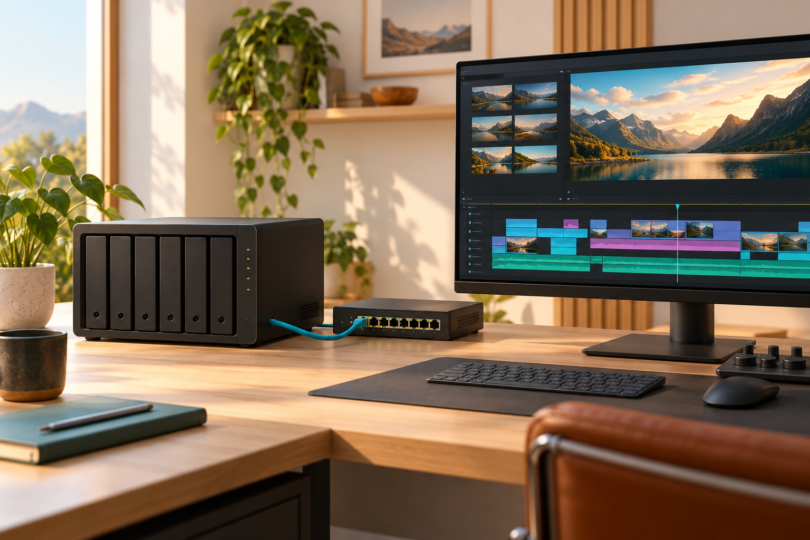

The best NAS for video editing depends on whether you want a shared footage library, a place to edit lightweight proxies, or storage that several workstations can edit from directly. Start with your codecs, simultaneous streams and network. A fast NAS processor cannot rescue a slow connection, and a large advertised capacity says little about timeline playback.
Our shortlist is the QNAP TS-464-8G for a compact proxy-first setup, the Synology DS1525+ for an organized five-bay media library with a 10GbE upgrade path, and the QNAP TVS-h674-i5-32G for a more expandable studio build. These are specification-based recommendations using manufacturer documentation and model manuals. We have not measured editing performance on these systems.
Best NAS for video editing at a glance
| NAS and best fit | Core hardware | Network and main limitation |
|---|---|---|
| QNAP TS-464-8G Compact shared library and proxy workflows |
4 SATA bays; Intel Celeron N5095; 8GB DDR4; 2 M.2 slots | 2 × 2.5GbE; optional compatible PCIe network card. Confirm the RAM hardware revision before planning upgrades. |
| Synology DS1525+ Five-bay storage and backup management |
5 SATA bays; AMD Ryzen V1500B; 8GB ECC DDR4, up to 32GB; 2 M.2 slots | 2 × 2.5GbE; optional E10G22-T1-Mini 10GbE module. Drive eligibility and M.2 use need model-specific checks. |
| QNAP TVS-h674-i5-32G Expandable studio storage |
6 SATA bays; Intel Core i5-12400; 32GB DDR4, up to 64GB; 2 M.2 slots | 2 × 2.5GbE; compatible 10/25GbE card costs extra. A larger system with more setup decisions. |
The configurations compared here are diskless enclosures: budget separately for HDDs or SSDs, backup storage, any network upgrade and client adapters. Four, five or six bays describe drive positions, not included drives or usable terabytes. Manufacturer links below identify the exact models; check the selected retailer bundle, warranty and return terms before ordering.
1. QNAP TS-464-8G: best compact option for proxy-first editing
The TS-464-8G makes sense for an individual editor who wants footage shared across computers, with active projects kept on a local SSD or edited through lower-bandwidth proxies. Its four SATA bays offer more array choices than a two-bay enclosure, while dual 2.5GbE ports provide a useful starting point for a wired network. The Intel Celeron N5095 is a four-core processor; the selected configuration includes 8GB of DDR4 memory.
QNAP documents two M.2 2280 PCIe Gen 3 x1 slots and one PCIe Gen 3 x2 expansion slot. Compatible NVMe drives can serve supported cache or storage-pool roles; they are not included. A supported network card can add 10GbE, but the slot, card and drive array all remain part of the performance equation. An M.2 slot here does not have the same interface as a desktop PCIe x4 SSD slot.
- Why choose it: four drive bays, built-in 2.5GbE and an upgrade slot in a relatively compact enclosure.
- What to check: QNAP’s current specifications list socketed memory and a 16GB maximum for the revision introduced in January 2024, while its TS-x62/TS-x64 manual still describes the TS-464-8G as non-expandable. Confirm the actual unit’s revision with QNAP or the retailer; do not buy extra RAM based on the model name alone.
- When to step up: several editors accessing high-bitrate originals, more drive bays, or substantial simultaneous server workloads. Adding a 10GbE card alone does not establish that this configuration can meet those demands.
Its Intel graphics can help supported media-server applications transcode compatible video. That capability does not make Premiere, Resolve or another editor render on the NAS. The editing workstation still needs the CPU, GPU and codec support for its timeline.
View the QNAP TS-464 and select the TS-464-8G diskless configuration. Cross-check the hardware specifications and model-family manual.
2. Synology DS1525+: best for a managed five-bay media library
Choose the DS1525+ when shared folders, permissions, snapshots and a repeatable backup routine matter as much as the storage hardware. Five SATA bays give it room beyond a compact four-bay setup. Its AMD Ryzen V1500B has four cores and eight threads, and the enclosure includes 8GB of ECC DDR4 memory, with a documented maximum of 32GB using supported modules.
Two 2.5GbE ports are built in. For a faster individual workstation connection, the optional Synology E10G22-T1-Mini adds one 10GbE RJ-45 port. The module is sold separately; this is a dedicated upgrade slot, not a general-purpose PCIe slot for arbitrary network cards. The computer and any intervening switch must also support the intended link speed.
- Why choose it: a five-bay platform with ECC memory, DSM’s storage-management tools and a defined 10GbE upgrade.
- What to check: exact drive models and firmware against Synology’s current compatibility policy. DSM 7.3 broadened third-party HDD and 2.5-inch SATA SSD options for 2025 DiskStation Plus models, but that is not blanket approval for every drive or M.2 SSD.
- Expansion limit: up to two DX525 units increase the supported SATA drive-bay total to 15. They cost extra, and the older DS1522+’s DX517 expansion units are not the listed expansion option for this model.
The two M.2 2280 NVMe slots are documented for compatible SSD caching. Do not assume any consumer NVMe drive can become a storage volume: approved drives, supported functions and the installed DSM version matter. Cache is also not a substitute for sufficient sustained array and network bandwidth.
For editing, buy this as a file server. Do not choose it on the assumption that its Ryzen CPU provides Intel Quick Sync hardware transcoding. Media-server software transcoding is a separate workload with its own CPU and codec limits.
View the Synology DS1525+ and its supported accessories. Read the current drive policy and the hardware installation manual before choosing drives or upgrades.
3. QNAP TVS-h674-i5-32G: best for a more expandable studio build
The TVS-h674-i5-32G is the option to investigate when the compact models run out of bays or expansion flexibility. This exact configuration has a six-core, twelve-thread Intel Core i5-12400 and 32GB of DDR4 memory; QNAP’s current supported ceiling is 64GB. Its six SATA bays and ZFS-based QuTS hero operating system make it a candidate for a shared production library with planned snapshots and separate backups.
Its built-in networking is still two 2.5GbE ports. The attraction for a faster studio network is the pair of PCIe Gen 4 slots, x16 and x4, with compatible 10/25GbE expansion options. Two M.2 2280 PCIe Gen 4 x4 slots provide additional SSD options. Check the exact card, bracket, physical clearance and drive compatibility before purchase; a wide card can affect access to the neighboring slot.
- Why choose it: more SATA bays, a higher-specification CPU, more included memory and broader expansion than the TS-464.
- What to budget for: the drive array, any SSDs, a suitable network card, workstation adapters, switch and backup capacity. The diskless enclosure alone is not a ready-to-edit storage system.
- What it does not include: built-in 10GbE or Thunderbolt. The similarly named TVS-h674T is a different model; do not transfer its Thunderbolt specifications to this one.
Supported QNAP expansion enclosures can add capacity, but their connection types, required host adapters and operating-system limits vary. Check the compatibility list for the exact enclosure rather than assuming any USB disk box extends the main RAID pool. Decide the storage layout before ingesting projects, and follow QNAP’s setup guidance: initialization can erase installed drives.
This is our studio expansion pick on hardware capability, not a measured promise of a particular number of 4K or 8K editors. QNAP’s advertised sequential-transfer results use specific drives, network cards and test conditions. They do not establish real-time timeline performance for your codec, effects or concurrent users.
View the QNAP TVS-h674 and select TVS-h674-i5-32G. Consult its current specifications and TVS-hx74 manual.
How to choose the right editing NAS
Choose a workflow first. For a solo editor, copying an active project to a fast local SSD and backing it up to the NAS can be simpler than upgrading an entire network. Proxies lower the bandwidth needed during editing, with originals reconnected for finishing. Direct editing of originals from the NAS is the most demanding option, especially with multicamera timelines and several clients.
Size bandwidth from the footage. Divide the video bitrate in megabits per second by eight to get a starting megabytes-per-second requirement, then multiply by concurrent streams. For example, four 400Mb/s streams represent 200MB/s of video data before protocol overhead, audio, other reads or background jobs. This arithmetic is a planning example, not a performance test. Codec complexity also affects workstation decoding even when storage bandwidth is sufficient.
A single 1GbE, 2.5GbE or 10GbE link has a theoretical line-rate equivalent of 125, 312.5 or 1,250MB/s respectively, before overhead. Real transfers are lower and can be limited by drives, RAID layout, SMB settings and competing work. Two ports do not automatically double one editor’s connection: link aggregation and SMB Multichannel have different configuration and client requirements. Verify the negotiated speed across the whole wired path.
Adobe’s Premiere Productions guidance recommends 10Gbps or faster for larger-than-HD frames, larger Productions or multiple simultaneous users. It favors SMB for NAS access and keeps Media Cache files and the cache database on each workstation’s local drive or a fast directly attached SSD. Follow your editor’s collaboration and project-locking rules; a shared folder alone does not make simultaneous project editing safe.
Buy usable capacity, not the largest raw number. Allow room for originals, proxies, renders, project versions, snapshots and future shoots. Redundant RAID consumes capacity. As a simple equal-drive example, four 12TB drives provide 48TB raw, or about 36TB nominal before filesystem overhead in RAID 5. Different layouts and mixed drive sizes change the calculation. Use the chosen platform’s calculator and leave operating headroom.
Match drives to the enclosure. Check the exact model number, capacity, firmware and workload suitability on QNAP’s compatibility list or Synology’s drive list. SATA, SAS, M.2 SATA and M.2 NVMe are not interchangeable. Follow the manual for installation and cooling, and back up any existing data before initialization.
Keep a separate backup. RAID and SHR are not backups. Redundancy helps with specified drive failures; it does not by itself recover a deleted project or protect against theft, fire or loss of the entire enclosure. Use versioned backups to a separate destination, keep an off-site or offline copy of irreplaceable footage, and test a restore. Schedule heavy backup and rebuild-related work with editing deadlines in mind.
What about the older NAS models and accessories?
The original list mixed NAS enclosures with mice, monitors, internal drives and USB disks. Those accessories may belong in an editing setup, but they are not complete network storage systems. A USB SSD can be excellent active-project storage without becoming a NAS.
The original Synology DS220+ is a two-bay model with dual 1GbE ports; it is better approached as an existing shared library or proxy/backup resource than as the default new purchase for demanding direct editing. The DS1522+ remains worth evaluating if you already own it: its optional 10GbE module is relevant, but its four built-in 1GbE ports and DX517 expansion support differ from the DS1525+. Published aggregate transfer figures do not describe a single ordinary 1GbE workstation connection.
The WD My Cloud Home and My Cloud EX2 Ultra entries also need their own current software-support and workflow checks. They are not substitutes for the three configurations above simply because they store files on a network. Likewise, the original Synology E10G22-T1-Mini is an upgrade module, and the MikroTik and TP-Link entries are switches. None is a complete NAS by itself.
Which one should you buy?
Choose the TS-464-8G for a compact library with local-SSD or proxy editing, after confirming its hardware revision. Choose the DS1525+ for a five-bay DSM storage system with a specific 10GbE upgrade path and carefully checked drives. Choose the TVS-h674-i5-32G when you can justify six bays and more expansion flexibility. For direct shared editing, price and validate the complete drive, network and workstation configuration before committing.
Frequently asked questions
Can I edit 4K video directly from a NAS?
Yes, if the storage array, network and workstation can sustain the footage and number of simultaneous streams. Resolution alone is not enough to decide: codec, bitrate, multicamera use and effects matter. Test a representative project, and use proxies or a local SSD if the shared setup cannot keep up.
Do I need 10GbE for video editing?
It depends on the workflow. A lower-bandwidth proxy workflow can need much less bandwidth than direct editing of high-bitrate originals. Adobe recommends 10Gbps or faster for larger-than-HD Productions, larger projects or multiple simultaneous users. The NAS, computer and any intervening switch must support the intended connection.
Are drives and a 10GbE connection included with these NAS models?
The configurations compared here are diskless, and all three have dual 2.5GbE ports as standard. Drives and 10GbE upgrades are separate purchases. Retailers may offer bundles, so verify the exact model, included drives, usable capacity, network card and warranty before ordering.
Does hardware transcoding make my editing timeline faster?
Not automatically. NAS hardware transcoding serves supported media applications and codecs; it is different from your editing computer decoding footage and rendering effects. Software transcoding uses the server CPU and has separate performance limits. App support and licensing also matter; Plex hardware-accelerated streaming generally requires Plex Pass.
Is RAID enough to protect my video projects?
No. Redundant RAID can keep an array operating through the drive failures its layout tolerates, but it is not a separate backup. Keep versioned copies on another destination and an off-site or offline copy of irreplaceable footage, then test that you can restore a project.