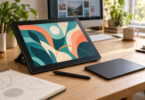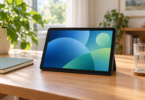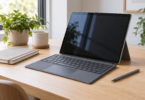

The Microsoft Surface Pro 13-inch, 12th Edition is our tablet-first choice for artists who want a detachable Windows computer. The ASUS ProArt PX13 HN7306EA-XS99T is the better fit when a built-in keyboard and more memory matter more than holding a lightweight slate. Choose between them by checking your drawing software, pen requirements and working position before comparing processor names.
Best tablet laptops for artists at a glance
| Exact configuration | Best fit | Display | Main tradeoff |
|---|---|---|---|
| Surface Pro 13-inch, 12th Edition; X2 Elite, 16GB RAM, 1TB SSD, Black | Drawing on a detachable Windows tablet | 13-inch OLED, 2880 × 1920, up to 120Hz | Pen and keyboard cost extra; check Windows on Arm compatibility |
| ProArt PX13 HN7306EA-XS99T; Ryzen AI Max+ 395, 64GB RAM, 1TB SSD, Nano Black | A convertible laptop for a memory-heavy creative workflow | 13.3-inch OLED, 2880 × 1800, 60Hz | The keyboard stays attached in tablet mode; confirm the pen bundle |
Best detachable choice: Microsoft Surface Pro 13-inch

Microsoft Surface Pro 13-inch, 12th Edition, X2 Elite, 16GB/1TB, Black
As an Amazon Associate we earn from qualifying purchases.
This recommendation is the black 12th Edition model with a Snapdragon X2 Elite processor, 16GB RAM and a 1TB SSD, identified as EP2-65023. It is a device-only purchase: Microsoft lists the pen and keyboard separately. Match all of those details when ordering; the LCD model, earlier editions, different storage sizes and keyboard bundles are separate choices.
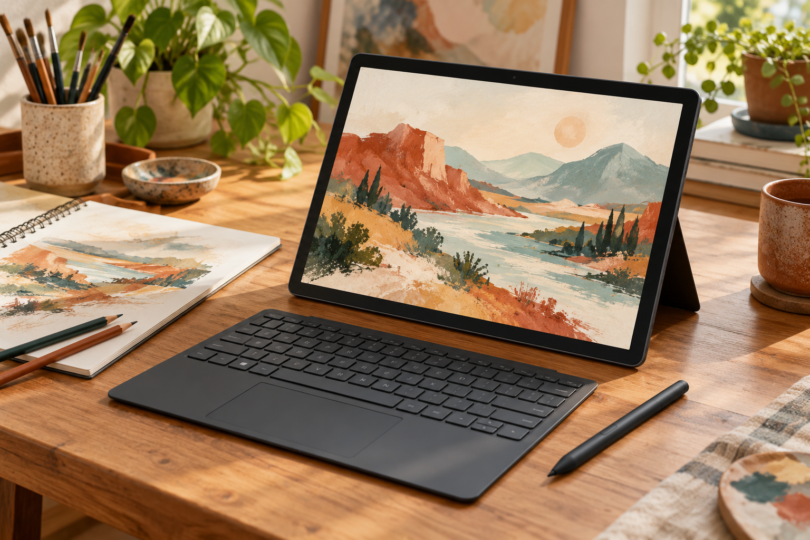
A detachable keyboard lets you put the screen closer to your drawing hand without folding a keyboard underneath it. The built-in kickstand also gives you another way to support the tablet on a desk. For sketching at different locations, that is the clearest reason to choose the Surface over the PX13.
The 13-inch display has a 2880 × 1920 resolution and refreshes at up to 120Hz. That is a useful specification for an artist who wants a taller canvas shape and a higher refresh-rate option than the 60Hz ASUS. It does not, by itself, establish lower pen latency or better line quality in your preferred drawing app.
Budget for a compatible Surface Slim Pen and a way to charge it. Microsoft documents pen storage and wireless charging on the compatible 13-inch keyboard, which is also a separate purchase. Check the exact keyboard and pen combination rather than assuming any Surface accessory includes the charging feature you need.
The Snapdragon model runs Windows on Arm. Microsoft says most Windows apps can run, including many through emulation, but hardware and application drivers must support Arm. Before buying, check the current versions of your illustration app, plug-ins, printer software and any external drawing tablet. One incompatible driver can matter more than an attractive display.
- Why choose it: a detachable design, adjustable kickstand and OLED screen make it the more natural starting point for a tablet-centered setup.
- Why skip it: the complete drawing setup requires extra accessories, and a driver-dependent workflow needs a careful Arm compatibility check.
The linked Amazon product is the black 16GB/1TB OLED configuration. Its checked page offered a new purchase route but hid the main offer price behind a cart prompt. Check the selected condition, seller, total and delivery date before paying; prices shown beside alternative sellers or suggested bundles are not the price of the selected new device.
Best convertible choice: ASUS ProArt PX13
Look specifically for HN7306EA-XS99T: Ryzen AI Max+ 395, 64GB memory, 1TB SSD and Nano Black finish. This is not the older HX 370 model with an NVIDIA RTX 4050 or RTX 4060. The selected ASUS uses integrated AMD graphics, so do not buy it on the assumption that it contains one of those NVIDIA GPUs.
The PX13 folds through 360 degrees between laptop, tent and tablet positions. That suits an artist who types project notes, uses keyboard shortcuts and then folds the same computer flat to draw. The tradeoff is that its keyboard remains part of the device: it is a convertible laptop rather than a detachable slate.
ASUS specifies a 13.3-inch 2880 × 1800 OLED touchscreen with stylus support and a 60Hz refresh rate. Its 64GB memory configuration offers more capacity than the selected 16GB Surface. Consider that extra capacity if your actual projects and concurrent applications need it; a memory figure alone does not prove that a brush, filter or export will run faster.
The built-in keyboard and ASUS DialPad are useful reasons to consider this form factor for desk work. Check whether the controls you want are supported by your applications. For drawing, verify the compatible pen and what the exact seller includes: ASUS warns that bundled accessories vary by country and territory.
- Why choose it: an attached keyboard, several working positions and 64GB memory in this exact configuration suit a laptop-centered creative setup.
- Why skip it: the screen is limited to 60Hz, and folding the laptop does not remove the keyboard’s bulk from your hands.
Check the ProArt PX13 HN7306EA-XS99T at Best Buy. Match the model, 64GB memory and 1TB storage, then review the seller, new versus open-box condition, pen inclusion and delivery options. The product page has multiple offer paths, so the final selected offer needs its own check.
What to check before choosing
Start with a representative project rather than a maximum specification. List your essential apps, plug-ins, fonts, peripherals and export requirements. Check the software publisher’s requirements for each, and leave room in the budget for the pen, replacement tips, keyboard if needed, and any adapters. The right computer should fit the work you already do.
Think about where you draw. At a desk, a supported screen angle and access to shortcuts may be more important than the device’s tablet label. When sketching away from a desk, an attached keyboard can become an inconvenience. If possible, try slow diagonal strokes, light pressure and your normal hand position with the exact pen before committing.
Resolution and refresh rate describe different things. Use resolution to compare canvas detail and interface space, then consider refresh rate separately. For color-critical work, check the display settings, application color management and your final output workflow; an OLED label is not a substitute for those checks.
Choose the Surface if detachable drawing is the priority and your full workflow supports Windows on Arm. Choose the PX13 if you want an attached keyboard and the selected 64GB configuration for projects that need the memory. Both include a 1TB SSD in this comparison, so their form factor and software fit are more useful deciding points than storage capacity.
Frequently asked questions
Which tablet laptop should an artist choose first?
Start with the Surface Pro for a detachable tablet setup, or the ProArt PX13 for a convertible laptop setup. Check software and pen compatibility before treating either as the better purchase for your work.
Does the Surface Pro include a pen and keyboard?
Not in the device-only configuration recommended here. Microsoft lists the pen and keyboard separately, so include them in your total budget.
Is the PX13 a detachable tablet?
No. Its 360-degree hinge lets it fold into tablet mode, but the keyboard stays attached. Choose the Surface if removing the keyboard is important to you.
Does the selected PX13 have an NVIDIA GPU?
No. The HN7306EA-XS99T configuration uses integrated AMD graphics. Older PX13 models with RTX 4050 or RTX 4060 graphics are different configurations.
Will every Windows art accessory work on the Surface?
No. Microsoft says Windows on Arm peripherals need compatible built-in drivers or Arm64 drivers from their manufacturer. Check the exact accessory and required software before ordering.