
Choose a screen drawing tablet by its computer connection, usable canvas and controls. For a compact desk, the Huion Kamvas 13 (Gen 3) is worth considering; for a larger 2560 × 1600 workspace with a shortcut remote, compare the XPPen Artist Pro 16 (Gen 2); and for Wacom’s Pro Pen 3, look at the Cintiq 16 model DTK168. All three are connected pen displays: they show artwork from a compatible host device rather than running drawing apps independently.
If you need to draw without a computer, you want a standalone tablet instead. Our budget art-tablet guide explains that distinction. A screenless graphics tablet is another category: your hand draws on a pad while your eyes watch a separate monitor.
How this guide was made: We compared official product specifications and connection documentation. We have not performed hands-on pen, color or latency tests, and the choices below are based on different workspace needs rather than a fabricated performance ranking. Links go to manufacturers; check the exact model and bundle before purchase.
Three pen displays at a glance
| Display | Screen specification | Reason to consider it | Important limitation |
|---|---|---|---|
| Huion Kamvas 13 (Gen 3), GS1333 | 13.3 inches; 1920 × 1080 | Compact canvas with two dials and five shortcut keys | Stand and full-featured USB-C cable may cost extra |
| XPPen Artist Pro 16 (Gen 2), MD160QH | 16 inches; 2560 × 1600 | Larger workspace, fold-out support and separate shortcut remote | The HDMI 3-in-1 cable is listed separately |
| Wacom Cintiq 16, DTK168 | 16 inches; 2560 × 1600 | Pro Pen 3 and a pen-only drawing surface | No finger touch; optional accessories add cost |
1. Huion Kamvas 13 (Gen 3): compact display with built-in controls
The Kamvas 13 (Gen 3) pairs a 13.3-inch Full HD display with a battery-free PW600L pen. Two dials and five programmable keys put shortcuts on the device itself. That makes it a sensible candidate when you want an easily stored display and prefer physical controls close to your drawing hand.
Trade-off: A smaller screen leaves less room for both your canvas and app toolbars. Check your drawing program’s interface scaling before choosing it for dense animation or illustration layouts. Huion lists its foldable stand as optional and says a full-featured USB-C cable is an additional purchase.
Read Huion’s connection guide before buying: the USB-C route needs compatible video output, and extra power may still be necessary. An ordinary charging cable is not a substitute.
2. XPPen Artist Pro 16 (Gen 2): more room with a shortcut remote
The Artist Pro 16 (Gen 2) has a 2560 × 1600 screen, X3 Pro pen, built-in foldable support and an included shortcut remote. Its 16:10 canvas is a useful middle ground if a 13-inch display feels cramped but a large desktop display would dominate the desk.
Trade-off: Confirm the connection bundle. XPPen lists the 3-in-1 HDMI cable as sold separately; a host without suitable USB-C video output can therefore need another purchase. The remote can be placed where convenient, but it is also another item to keep charged or connected and to pack.
Take care with the name: Artist Pro 16 (Gen 2) is not the same product as Artist 16 (2nd Gen), Artist 16 3rd, or an older Artist Pro 16. Use the MD160QH model reference when comparing listings.
3. Wacom Cintiq 16 DTK168: Pro Pen 3 in a 16-inch format
The Cintiq 16 DTK168 uses Wacom’s battery-free Pro Pen 3 and a 16-inch, 2560 × 1600 screen. This is a candidate if you specifically want that pen system and a moderately sized connected display. Wacom lists the pen, display/power USB-C cables and AC power adapter among the included items.
Trade-off: The DTK168 supports pen input, not multi-touch. You cannot assume finger gestures because the screen accepts a pen. Wacom lists a separate ExpressKey Remote and adjustable stand as optional accessories. Also verify the model number: older Cintiq 16 listings describe different hardware.
What matters more than the biggest specification number?
Computer and app compatibility
Start with the operating system, app and ports you already have. A manufacturer’s compatibility list is only one part of the check: you also need a current supported driver and a drawing app that handles that pen input. If you are using a managed school or work computer, find out whether you are allowed to install the required driver before ordering.
Android support is device-specific and does not mean every Android tablet or phone will work. iPad compatibility should never be inferred from a USB-C connector. Check the display maker’s supported host list and the host’s video-output capabilities.
Video, data and power are different requirements
The same USB-C shape can carry different capabilities. A screen needs video, the pen needs a data connection, and the hardware needs sufficient power. Follow the exact manufacturer’s wiring diagram. Include any required adapter, stand and cable in the total cost; do not assume a “one-cable” headline applies to your laptop.
Workspace and posture
Measure the whole device, not just its screen diagonal. Leave space for the cable connectors, keyboard and mouse. A larger display can show more of your canvas but may require moving the keyboard farther away. Choose a stable support angle and a layout you can use comfortably; a higher-resolution panel alone cannot fix an awkward desk.
Pen and color claims
Pressure-level counts do not establish which pen feels best to you. The pressure curve, brush engine, nib and software all affect the result. Similarly, a claimed color-gamut percentage is not an independent accuracy test. XPPen explicitly distinguishes gamut area from coverage: a figure above 100% is not coverage of that standard. For color-critical work, assess your full calibrated workflow rather than buying from a single marketing number.
Frequently asked questions
Can these run Photoshop or Clip Studio Paint by themselves?
No. These pen displays depend on a compatible computer or other supported host to run the app. A pen display does not become a standalone computer because it has a screen.
Will any USB-C cable work?
No. The cable and host port must support the video, data and power requirements in the display’s documentation. A charging-only cable may power something without carrying an image or pen data.
Is a screen display better for a beginner than a screenless tablet?
Direct drawing can feel more familiar, but a screenless tablet usually takes less desk space and avoids buying another display. If you already have a good monitor and a limited budget, try that category before assuming a screen is essential.
Should I buy a display with touch?
Only if your workflow benefits from finger gestures and the exact model supports them. Pen input and finger touch are separate features. In particular, the Cintiq 16 DTK168 here is pen-only.
Bottom line
The compact Huion is the control-heavy option, the XPPen offers a larger canvas with a separate remote, and the Cintiq is the Pro Pen 3 choice. Before deciding, verify your host, cable path and total accessory cost. Those checks determine whether a promising screen tablet will actually fit your setup.
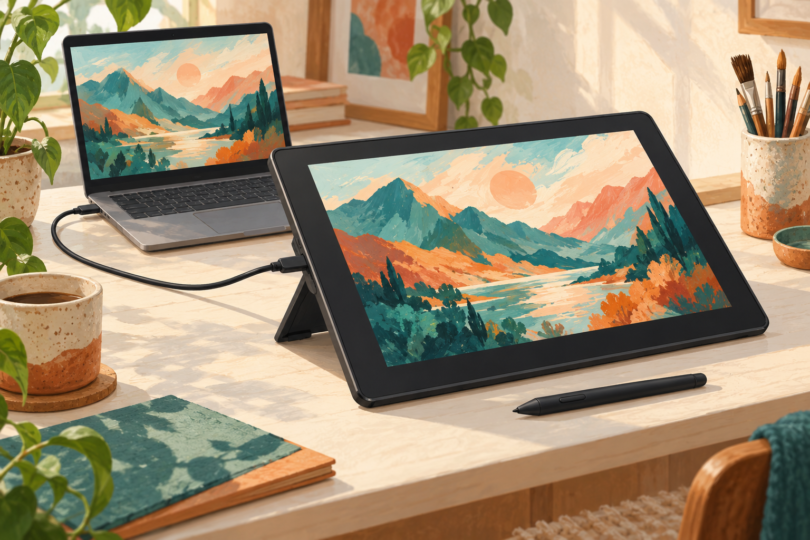
Image note: Generic AI-generated editorial illustration of a connected pen-display setup; not a photograph of a specific tablet or drawing application.