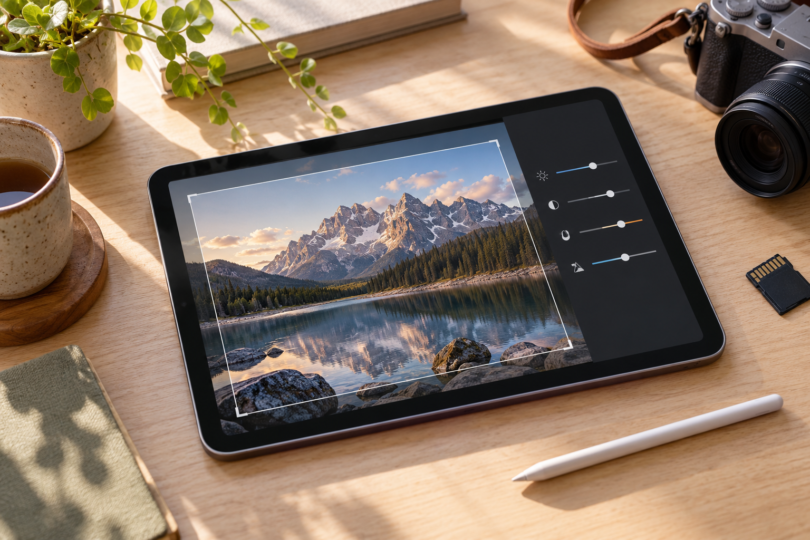

The best tablet for editing photos depends on the software you use and how much screen space you want. Start with the 11-inch iPad Air M4 for a compact Lightroom workflow, consider the 13-inch iPad Pro M5 for its larger OLED display, or choose the Galaxy Tab S11 if you want Android and an included pen. These are feature-based recommendations, not hands-on benchmark results.
This shortlist focuses on standalone tablets for mobile photo editing. Before replacing a computer, check the exact mobile versions of your essential apps, your camera’s RAW support and your export requirements. A faster tablet does not establish that a desktop plug-in or workflow is available on mobile.
Compare the three photo-editing tablets
| Tablet and suggested configuration | Why consider it | Main buying check |
|---|---|---|
| iPad Air 11-inch (M4), Wi-Fi, 256GB | Compact P3 IPS display; Apple Pencil Pro support | Pencil is a separate purchase; use iPadOS apps |
| iPad Pro 13-inch (M5), Wi-Fi, 512GB, standard glass | Larger tandem OLED screen; 12GB memory in this configuration | The 512GB model does not have the 1TB model’s 16GB memory |
| Galaxy Tab S11, Wi-Fi, Gray, 256GB, SM-X730NZAEXAR | 11-inch AMOLED; 12GB RAM; S Pen included | Android app workflow; microSD is additional storage, not extra RAM |
1. iPad Air 11-inch (M4): our starting point for mobile editing
The Air is our first model to compare for editing while traveling or moving between rooms. Its laminated IPS screen has a 2360 × 1640 resolution, P3 wide color and a rated brightness of 500 nits. The M4 model has 12GB of unified memory. These specifications make it a sensible compact candidate; they are not a measured claim about export speed or color accuracy.
Our suggested configuration is one Wi-Fi tablet with 256GB of storage. Apple also lists 128GB, 512GB and 1TB versions. The 256GB choice is an editorial starting point for a working photo collection; photographers who retain large RAW libraries locally should compare higher capacities. Apple Pencil Pro and Apple Pencil (USB-C) are supported, but neither appears in the tablet’s standard box contents.
The USB-C port supports USB 3 data transfers up to 10Gb/s. Apple documents connecting cameras, card readers and external storage through USB-C, sometimes with an adapter. Plan the reader and storage setup with the tablet, and test your import process before a trip. See Apple’s exact iPad Air M4 specifications.
2. iPad Pro 13-inch (M5): for a larger editing canvas
Choose the 13-inch Pro when a larger image and more room for editing controls matter enough to justify the upgrade. Its 2752 × 2064 tandem OLED display supports P3 color and an adaptive 10–120Hz refresh rate. Apple rates SDR brightness at up to 1,000 nits and peak HDR brightness at 1,600 nits for HDR content. Those are manufacturer specifications, not our display measurements.
The suggested 512GB Wi-Fi model with standard glass has 12GB of unified memory and a 9-core CPU. The 1TB and 2TB configurations instead have 16GB memory and a 10-core CPU; nano-texture glass is an option only on those higher-capacity versions. Do not use a top-configuration review to assume the 512GB model has the same hardware.
Apple Pencil Pro and Apple Pencil (USB-C) are compatible and are separate from the standard tablet box. Thunderbolt 3 and USB 4 support up to 40Gb/s at the port, which can matter when choosing external storage; actual transfer speed depends on the connected equipment. The larger screen is the main reason for our recommendation, not a promise that iPadOS replaces a desktop editing setup. Compare the iPad Pro M5 specifications.
3. Samsung Galaxy Tab S11: for an Android workflow with a pen
The Galaxy Tab S11 is our compact Android alternative. Samsung’s US comparison table lists an 11-inch Dynamic AMOLED 2X display at 2560 × 1600, adaptive refresh up to 120Hz, a MediaTek Dimensity 9400+ processor and Android 16. Our selected US configuration is the Gray Wi-Fi model with 256GB storage, model SM-X730NZAEXAR.
The 256GB configuration has 12GB RAM, and Samsung lists an included S Pen. MicroSD expansion supports cards up to 2TB. That is useful to compare if you carry a large photo collection, but do not assume every editing app can keep its working catalog on the card; check the app’s import and storage behavior. The card also does not increase working memory.
Choose it because you prefer Android and want the pen included. Check Lightroom’s Android requirements and the availability of any other essential app before buying. This recommendation does not establish that Photoshop for iPad or desktop Photoshop features are available on the Samsung tablet. View the exact Galaxy Tab S11 configuration and Samsung’s tablet comparison.
Check the editing workflow before choosing storage or accessories
For Lightroom mobile, Adobe lists iOS 18 or later with 4GB RAM recommended. Its Android recommendations are an octa-core ARMv8 or x86-64 processor, at least 8GB RAM and 128GB internal storage, with Android 8 or later. Meeting hardware requirements is a starting point; it is not a guarantee that every advanced feature behaves identically across platforms. Check Adobe’s current mobile requirements.
Budget for software as well as the tablet. Adobe classifies mobile RAW editing, masking, healing, geometry tools and batch editing among paid premium features. Its mobile FAQ says Creative Cloud members can import and edit camera RAW files on iPad and Android. Check your exact camera and minimum software version in Adobe’s camera-support list before committing.
If Photoshop is essential, verify the app listing and Adobe’s supported-device guidance for the exact iPad you intend to buy. Adobe’s captured iPad requirements page names older models through M4, so that page alone does not establish explicit support for the M5 Pro or M4 Air. We therefore recommend these tablets around documented hardware and Lightroom mobile requirements, rather than claiming Photoshop certification for those two configurations.
Choose capacity around the photos you need offline, your exports and your backup routine. Our 256GB and 512GB suggestions are buying judgments, not minimum requirements or promises about how many RAW files will fit. A memory card reader, external drive, pen, keyboard and software plan can change the total cost substantially. Verify the exact items included in the seller’s chosen bundle.
Frequently asked questions
Can I edit RAW photos on a tablet?
Yes, Adobe documents camera RAW import and editing in Lightroom mobile for iPad and Android with the appropriate paid membership. Check support for your camera model and keep a separate backup of important originals.
Is the iPad Pro necessary for photo editing?
Not for everyone. We would compare the Air first for a compact workflow and move to the 13-inch Pro when its larger OLED display is worth the added cost to you. The Pro’s higher storage tiers also change memory and CPU configuration, so compare the exact version.
Can Lightroom mobile replace Lightroom Classic?
Assess your own workflow before replacing a computer. Adobe describes mobile syncing with Lightroom Classic, including Smart Previews for RAW files synced from Classic and a limit of one synced Classic catalog. That connection does not establish full feature parity between the applications.