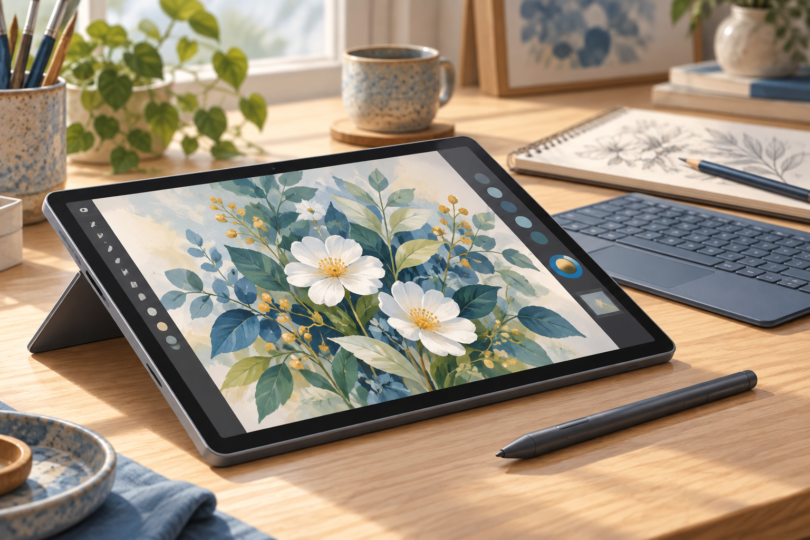

The best Windows tablet for drawing depends on whether you value screen space, portability, or a traditional PC workflow. Our starting point is the Microsoft Surface Pro 13-inch (12th Edition) with Surface Slim Pen for a roomy, pen-enabled Windows setup. The Surface Pro 12-inch (1st Edition) is the compact alternative, while the ASUS ROG Flow Z13 GZ302EA-XS96 is the more substantial AMD-powered choice for drawing alongside demanding desktop work.
All three are standalone Windows computers: they can run their own drawing software without a second PC. This is a research-based buying guide, not a hands-on drawing test. We compare documented hardware, pen support, accessory requirements, and the exact configurations linked below.
Affiliate disclosure: As an Amazon Associate, we earn from qualifying purchases. Product links may earn us a commission at no additional cost to you. Check the selected configuration, seller, condition, included accessories, and return policy before buying; prices and availability can change.
Best Windows tablets for drawing: quick comparison
| Tablet and linked configuration | Best fit | Display | Pen and main caveat |
|---|---|---|---|
| Surface Pro 13-inch, 12th Edition (2026) Snapdragon X2 Elite, 16GB RAM, 1TB SSD, Black |
A larger portable drawing workspace | 13-inch OLED, 2880 × 1920, up to 120Hz | Surface Slim Pen is separate. Budget for a compatible charging accessory; verify Windows on Arm software support. |
| Surface Pro 12-inch, 1st Edition (2025) Snapdragon X Plus, 16GB RAM, 256GB storage, Platinum |
Compact sketching and note-taking | 12-inch LCD, 2196 × 1464, up to 90Hz | Separate Slim Pen charges on the tablet’s back. Smaller screen, less storage, and an older generation. |
| ASUS ROG Flow Z13 (2025), GZ302EA-XS96 Ryzen AI Max+ 395, 32GB RAM, 1TB SSD, Off Black |
An AMD Windows tablet for a mixed creative workflow | 13.4-inch IPS-level touchscreen, 2560 × 1600, 180Hz | ASUS Pen 2.0 SA203H support; do not assume a pen is included. Heavier than either Surface option. |
Display and pen specifications are manufacturer-stated. A higher refresh rate or pressure-level count does not by itself establish better line quality, lower end-to-end latency, or better palm rejection.
1. Microsoft Surface Pro 13-inch (12th Edition): our larger-screen starting point
Choose it if: you want to sketch directly on a Windows computer that also works as a detachable laptop, and your essential apps support its Snapdragon platform.
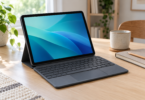
The linked 2026 configuration combines a Snapdragon X2 Elite processor, 16GB RAM, a 1TB SSD, and an OLED touchscreen. The 3:2 display gives a drawing canvas useful vertical room beside toolbars; Microsoft lists a 2880 × 1920 resolution and up to 120Hz refresh rate. The tablet weighs about 895g before accessories. See Microsoft’s Surface Pro specifications and its 12th Edition configuration details.
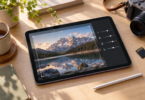
Surface Slim Pen, also called Slim Pen 2 or Slim Pen (2nd Edition), supports pressure-sensitive inking and tilt on this Surface. It is sold separately. For charging, choose a compatible keyboard with pen storage or the separate Slim Pen charger; a keyboard without the charging tray is not an equivalent accessory. Microsoft’s pen compatibility chart identifies the supported features and charging options.
- Strengths: larger canvas than the 12-inch model, OLED option, built-in kickstand, and a clearly documented first-party pen ecosystem.
- Limits: the pen and keyboard increase the total cost. Snapdragon means Windows on Arm, so specialist plug-ins, older applications, and peripherals need a compatibility check.
- Buying advice: this box is for the OLED, X2 Elite, 16GB/1TB Black variant. Do not assume a different Surface Pro listing has the same screen, processor, memory, or accessories.

Microsoft Surface Pro (2026), 13-inch 2-in-1 Laptop, Qualcomm Snapdragon X2 Elite Processor, Touchscreen OLED Display, 16GB RAM, 1TB SSD Storage, Windows 11 Copilot+ PC Built for AI
As an Amazon Associate we earn from qualifying purchases.
2. Microsoft Surface Pro 12-inch (1st Edition): the compact alternative
Choose it if: a smaller bag and a lighter tablet matter more than maximum canvas area.
This is the 2025, first-generation 12-inch model with an eight-core Snapdragon X Plus, 16GB RAM, and 256GB of UFS storage. Microsoft lists a 2196 × 1464 LCD with up to 90Hz refresh and a tablet weight of 686g. Those dimensions make it the most portable option in this particular shortlist, although desktop drawing interfaces have less space for both the artwork and their panels. See Microsoft’s first-edition technical specifications.
The separate Surface Slim Pen can be stored and charged magnetically on the back, so a charging keyboard is not required just to keep the pen powered. If you want a keyboard, use the matching 12-inch first-edition model: the 13-inch Surface Pro keyboards do not fit. Both accessory points are documented in Microsoft’s first-edition support guide.
- Strengths: lower tablet weight, rear pen charging, and a kickstand for drawing at a desk.
- Limits: the linked 256GB model leaves less room for large projects, references, and installed apps. It uses an LCD rather than the OLED panel in our 13-inch selection, and the same Arm compatibility checks apply.
- Buying advice: compare its complete price with newer models. Microsoft has announced a second-edition 12-inch Surface Pro with Snapdragon X2 Plus, with availability starting October 13, 2026 in select markets. The affiliate box below is specifically the older 2025 model, not that replacement.

3. ASUS ROG Flow Z13 GZ302EA-XS96: for drawing plus heavier PC work
Choose it if: you need an AMD-based Windows machine and want one detachable computer for artwork, other creative applications, and gaming.
The GZ302EA-XS96 pairs a Ryzen AI Max+ 395 with Radeon 8060S integrated graphics, 32GB RAM, and a 1TB SSD. ASUS specifies a 13.4-inch, 2560 × 1600 IPS-level touchscreen with stylus support and 180Hz refresh. Its USB-A, USB4, HDMI, and microSD connections offer more built-in connection choices than the Surface tablets. See ASUS’s U.S. configuration table.
For the GZ302 family, ASUS documents the SA203H stylus in its regional specification sheet and GZ302EA conformity document. The ASUS Pen 2.0 SA203H uses Microsoft Pen Protocol 2.0 and USB-C charging. Regional pen bundles differ: the linked U.S. listing’s box contents do not list a stylus, so budget for one unless the seller explicitly confirms inclusion.
- Strengths: 32GB memory in this configuration, an AMD processor for an x86-64 Windows workflow, and a broad port selection.
- Limits: ASUS lists the tablet at 1.20kg, before adding its keyboard and power adapter. Its gaming-focused hardware is a substantial purchase for simple sketching, and the high-refresh display is not proof of superior pen performance.
- Buying advice: select GZ302EA-XS96 carefully. Max 390, Max+ 395, 32GB, 64GB, and 128GB versions are different configurations. This recommendation does not imply that you need a 128GB model for digital drawing.

Windows tablet, pen display, or graphics tablet?
A standalone Windows tablet contains the computer, screen, battery, and operating system. The three models above belong to that category. Add the right active pen and drawing software, and you can work without another laptop.
A pen display is a screen you draw on while a separate computer runs the software. For example, Wacom’s Cintiq connection instructions show the required host connection. A screenless graphics tablet is an input pad used while you look at your computer’s monitor. “Works with Windows” does not mean that either peripheral runs Windows itself.
If you already own a capable PC and only draw at a desk, compare a dedicated drawing peripheral before replacing the whole computer. If you need one portable device for drawing and desktop applications, a pen-enabled Windows detachable makes more sense.
How to choose a Windows tablet for drawing
Check the exact pen, not just the touchscreen
Touch support alone is insufficient. Look for an explicitly supported active pen, then confirm pressure support in the app you use. Pens for different systems are not universally interchangeable. Include a charging method, replacement nibs, and a safe place to store the pen in your decision.
Check your software before choosing Snapdragon
Both Surface configurations in this guide run Windows on Arm. Microsoft explains that some applications and hardware depend on Arm-compatible drivers; the fact that an app opens does not establish that every plug-in or connected device works. Check the developer’s requirements for your exact software version and workflow. Start with Microsoft’s Windows on Arm FAQ and, if relevant, Adobe’s Photoshop on Arm support notes.
The AMD Flow Z13 avoids the Arm-specific question, but you should still check the operating system, GPU, memory, and driver requirements of your applications. No tablet is automatically compatible with every creative tool.
Match memory and storage to real projects
As a buying rule of thumb, 16GB RAM is a sensible starting point for a new general-purpose drawing PC; consider 32GB if your current projects involve large canvases, many layers, or several creative apps at once. These are practical guidelines, not guaranteed layer counts. Your canvas dimensions, brushes, file formats, and application determine demand.
Storage has a different job. A 1TB drive gives more room for project files and local references than 256GB, but it cannot substitute for RAM. Keep a separate backup whichever capacity you buy.
Budget for the complete setup
Compare the tablet, compatible pen, required pen charger, keyboard if needed, and any hub or stand as one purchase. A tablet-only offer can look better than it is once the accessories are added. Check what the specific seller includes rather than relying on promotional photos of a tablet beside a pen.
Use the return window to check drawing feel
Before buying, read the seller’s return terms. If a trial and return are permitted, use your normal drawing app to check slow diagonal strokes, light pressure, palm rejection, and comfortable posture. Try the shortcuts you use with the keyboard detached. We have not measured those behaviors on these units, so they are essential checks rather than claimed strengths.
Frequently asked questions
Can you draw on a Windows tablet without another computer?
Yes, if it is a standalone Windows device with compatible active-pen support. All three tablets selected here run their own applications. A pen display advertised as Windows-compatible may still require a separate host computer.
Do these tablets include the drawing pen?
The Surface tablets do not include Surface Slim Pen as standard. ASUS bundles vary by region and seller; do not assume the U.S. Flow Z13 listing includes a pen. Confirm the contents of the exact offer and add a compatible charging method where needed.
Is the Surface Pro 12-inch the same as Surface Pro 12th Edition?
No. “12-inch” describes screen size, while “12th Edition” is a generation name. Our 12-inch selection is the 2025 first edition with Snapdragon X Plus. Our 13-inch selection is the 2026 12th Edition with Snapdragon X2 Elite. Check the processor, screen size, year, and memory together when shopping.
Is a gaming tablet automatically better for drawing?
No. Extra processing capacity can help a broader creative workflow, but it does not establish better pen tracking or a more comfortable drawing surface. Choose the Flow Z13 for its overall PC configuration when you need it, rather than buying gaming specifications solely for sketching.
Should I buy an older Surface Pro to save money?
Only after comparing the complete setup and condition. Check the exact model’s Windows support, compatible pen and keyboard, battery condition if used, warranty, and return terms. A low advertised tablet price can lose its appeal if essential accessories are missing.
How we researched this guide
We checked manufacturer specifications and support documentation, then matched the linked Amazon.com product identities to the configurations described above. Research was checked on October 4, 2026. The shortlist is based on documented standalone Windows operation, active-pen support, screen and portability tradeoffs, software compatibility considerations, and accessory requirements.
We did not conduct hands-on drawing tests, measure latency or color accuracy, or award numerical review scores. Recommendations are editorial judgments from the cited information. Retail listings can change, so verify the exact configuration and offer before ordering.