
The best drawing pen for an Android tablet is the one its screen actually supports. For a Galaxy Tab S9 FE or S10 FE, start with the matching Samsung S Pen. Choose the STAEDTLER Noris digital jumbo if you want a thicker pencil shape on a listed EMR tablet. For a Lenovo Tab P12, the Tab Pen Plus is the model to check. A basic disc stylus such as the Adonit Mini 4 is an option for simple sketches on an ordinary capacitive touchscreen, with substantial limits.
These four recommendations compare documented compatibility, controls and practical tradeoffs. They are not hands-on drawing-test results. Before buying, find your tablet’s full model number in Settings and compare it with the pen maker’s compatibility information; “Android compatible” alone does not establish pressure sensitivity or palm rejection.
Best drawing pens for Android tablets at a glance
| Pen | Best fit | Why consider it | Main limitation |
|---|---|---|---|
| Samsung S Pen EJ-PX510 | Galaxy Tab S9 FE/FE+ and S10 FE/FE+ | Manufacturer-matched replacement with a side button | This FE pen has no Bluetooth remote Air actions |
| STAEDTLER Noris digital jumbo 180J 22-1 | Compatible tablets on STAEDTLER’s EMR list | Thick triangular grip and rear digital eraser | No side button; eraser and pressure behavior depend on the app |
| Lenovo Tab Pen Plus AP500U | Lenovo Tab P12 or Tab M10 5G | Pressure and tilt support with USB-C charging | Requires the correct tablet; Bluetooth alone is insufficient |
| Adonit Mini 4 | Basic sketching on a compatible capacitive touchscreen | Portable disc tip, clip and protective twist design | No pen pressure or native pen palm rejection |
1. Samsung S Pen EJ-PX510: best replacement for the listed Galaxy FE tablets
If your Galaxy Tab already came with a suitable S Pen, try that before buying another. For a lost or damaged pen, Samsung’s EJ-PX510 replacement listing names the Tab S9 FE, S9 FE+, S10 FE and S10 FE+ families, including the listed 5G versions. The mint US part number is EJ-PX510BGEGUJ. Match the complete part number and tablet generation when shopping.
Its advantage is straightforward integration. The Tab S9 FE family manual explains magnetic storage and opening Air command by hovering the pen and pressing its button. That is different from waving a pen to send Bluetooth remote commands. Samsung’s pairing guide says the FE models named here do not provide the BLE pairing and charging functions of some other S Pens.
- Pros: Clear manufacturer compatibility; side-button access to supported tablet functions; no pen charging routine for these FE models.
- Cons: Not a universal Android accessory; no Bluetooth remote Air actions from this FE pen; third-party app features still vary.
Choose it if: You want the matching replacement for a listed FE tablet. For a Tab S6 Lite, a non-FE Tab S9 or another Galaxy model, check its own replacement listing instead of assuming this SKU is the intended part.
2. STAEDTLER Noris digital jumbo: best pencil-style alternative for compatible EMR tablets
The Noris digital jumbo 180J 22-1 is the more appealing choice if a thick triangular pencil feels easier to hold than a narrow tablet pen. Its manufacturer specifications list a replaceable 0.7 mm tip, 4,096 pressure levels, a soft rear digital eraser and five spare nibs with a replacement tool. It uses the display’s EMR field, so it needs no battery charging or Bluetooth pairing.
Buy it only for a supported screen. STAEDTLER’s compatibility list includes Galaxy Tab S6 Lite, S7/FE, S8, S9/FE and specific other models. It also warns that some devices have versions with and without EMR. A familiar family name is not enough, and the list is not permission to assume every future tablet works.
The Noris digital guide makes the software limits clear: pressure-dependent line width and palm rejection depend on the app, while rear-eraser support also varies. There is no side button. Treat the eraser as a feature to verify in your preferred app before it becomes the reason you buy.
- Pros: Substantial triangular grip; no charging; replaceable nibs; rear eraser in compatible combinations.
- Cons: Requires compatible EMR hardware; lacks the S Pen’s side button; rear erasing is not guaranteed in every app.
Choose it if: Your exact tablet is supported and grip shape matters more to you than button shortcuts.
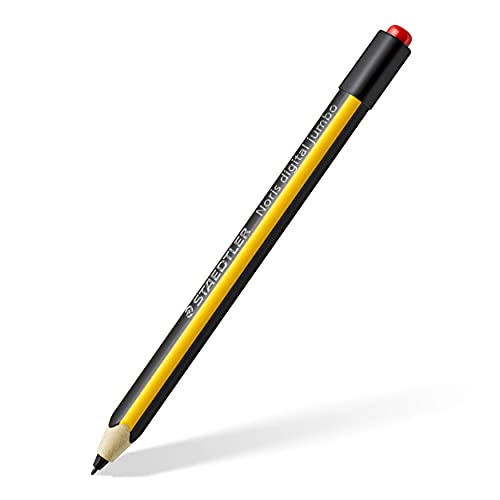
STAEDTLER Noris digital jumbo 180J 22-1 Stylus with Eraser
As an Amazon Associate we earn from qualifying purchases.
3. Lenovo Tab Pen Plus: best match here for Lenovo Tab P12
For the Tab P12, use Lenovo’s named pen compatibility rather than a generic “Lenovo stylus” search. The Tab P12 specification sheet identifies the Tab Pen Plus with 4,096 pressure levels, tilt detection and palm rejection. Lenovo’s pen datasheet also lists Tab M10 5G compatibility, a side button and USB-C charging. Those capabilities still need software that uses them.
The AP500U uses Lenovo’s LPP 2.0 pen support, as documented in its accessory overview. Bluetooth pairing is part of setup, not a way to make any Android screen compatible. The quick-start guide says to charge before first use and enable Bluetooth on the unlocked tablet. Magnetic attachment is for storage; charge through USB-C.
- Pros: Documented Tab P12 support; pressure and tilt input; rechargeable design; replaceable tip.
- Cons: Needs charging and setup; not a blanket recommendation for every Lenovo tablet; app support must be checked separately.
Choose it if: You own a Tab P12 or another exact model Lenovo lists for this pen. Do not treat “P12” and “P12 Pro” as interchangeable compatibility labels. The US product listing is SKU ZG38C05194; check the part number and warranty region when comparing sellers.
4. Adonit Mini 4: best basic option without a dedicated pen digitizer
If your tablet accepts finger input but has no compatible active-pen system, the Adonit Mini 4 offers a simple disc-tip alternative. Its transparent disc lets you see the contact point, and its split barrel twists around to protect the tip for carrying. Adonit lists compatibility with most iOS and Android devices; check your particular screen and protector rather than treating that wording as a universal guarantee.
This is a passive capacitive stylus for basic input. Adonit’s model comparison does not give Mini 4 pressure sensitivity or palm rejection. It cannot turn an ordinary touchscreen into an S Pen display. You can still sketch with an app’s manually selected brush size, but pressing harder will not supply pen-pressure data.
- Pros: Compact carrying design; visible disc contact point; no charging or pen pairing.
- Cons: No hardware pen-pressure control; no native pen palm rejection; requires more care about hand contact while drawing.
Choose it if: You want occasional outlines, doodles or basic notes and accept those limits. For pressure-controlled painting with your palm resting on the screen, prioritize a compatible tablet-and-pen system.
How to choose a drawing pen that works with your tablet
Start with the screen’s pen system. EMR, Lenovo’s LPP 2.0 and other pen systems are compatibility requirements, not interchangeable quality grades. An Android version, Bluetooth radio or USB-C port does not establish that the screen can read a particular pen. Match the exact tablet model, pen model and any generation or regional restrictions first.
Separate pressure from line-smoothing tricks. True pen pressure lets a supported brush respond to how firmly you press. An app may also vary width by speed or a preset setting; that does not prove the pen is transmitting pressure. Test a pressure-enabled brush with light and firmer strokes, then check tilt and eraser behavior separately.
Check the app before paying for extra features. For example, Sketchbook officially supports Android pressure with Samsung S Pen; it says other devices using S Pen technology may also work. That is not a guarantee for Lenovo’s pen or every EMR replacement. Its Android Pen Mode instructions explain how to restrict canvas drawing to S Pen input, with touch gestures separately controlled. Verify equivalent settings in your chosen app.
Choose controls and upkeep that suit your hand. Compare grip thickness, side-button placement and whether you need a rear eraser. Confirm replacement nib availability and your case’s storage fit. Lenovo warns that rough screen films increase tip wear; STAEDTLER also notes that display surfaces and protective films affect wear. Replace worn nibs according to the maker’s instructions.
Read the exact offer. A replacement nib set, a third-party “for Samsung” pen and an original Samsung pen are different purchases. Check brand, part number, color and unit count. A claimed pressure-level number by itself says little about latency, initial activation force or the quality of your lines; this guide has not measured those behaviors.
Which drawing pen should you buy?
Use the matching Samsung S Pen for the listed Galaxy FE tablets if straightforward replacement is the goal. Choose Noris digital jumbo when a thicker grip and app-supported rear eraser would improve your workflow on a compatible EMR screen. Pick Lenovo Tab Pen Plus for a documented Lenovo match such as Tab P12. Choose Adonit Mini 4 for simple capacitive input when you understand that pressure and native pen palm rejection are absent.
Frequently asked questions
Will any drawing pen work with an Android tablet?
No. A pressure-sensitive pen needs a compatible digitizer in the tablet and suitable software. Match the full tablet and pen model numbers. A passive capacitive stylus may provide basic touch input on a compatible screen, but it does not add an active-pen digitizer.
Does a battery-free stylus have pressure sensitivity?
It can. The Noris digital jumbo uses compatible EMR hardware and supports pressure input without a battery. A passive disc stylus such as Mini 4 is also battery-free but does not transmit pen pressure. Battery requirements alone do not identify a pen’s capabilities.
Do all Android drawing pens provide palm rejection?
No. Palm rejection depends on the supported pen, tablet and app. STAEDTLER explicitly makes this app-dependent, and Mini 4 does not supply native pen palm rejection. Check the drawing app’s pen-only or touch-input settings and try them on a blank canvas.
Can Lenovo Tab Pen Plus work on any Bluetooth tablet?
No. Bluetooth pairing does not replace the tablet’s required pen hardware. Lenovo documents Tab Pen Plus support for specific tablets, including Tab P12 and Tab M10 5G. Check the exact model’s compatibility information before buying, and follow the pen’s charging and pairing instructions.
Why does pressure work in one drawing app but not another?
Apps and individual brushes handle pen input differently. Check that the brush responds to pressure and that the app supports your pen-and-tablet combination. Sketchbook, for example, officially supports Android pressure with Samsung S Pen and makes only a qualified statement about other devices using S Pen technology.