
A good Windows tablet game needs controls that work with your setup as well as requirements your device can meet. Start with Microsoft Edge Surf for quick touch-controlled action, Microsoft Jigsaw for puzzles, or Mini Metro for route-building strategy with a mouse available as a backup. These are games to play on a Windows tablet; you do not need to shop for a new tablet to try the first two.
The shortlist at a glance
| Game | Why choose it? | Controls and compatibility | What you get |
|---|---|---|---|
| Microsoft Edge Surf | Short arcade sessions | Microsoft documents touch, mouse, keyboard and controller input. Runs inside supported Microsoft Edge. | Built-in Edge game; the public web preview is not the full version |
| Microsoft Jigsaw | Traditional puzzles and timed challenges | Touch support; Store lists Windows 10 build 19041 or higher and x86/x64 platforms. Arm needs a separate compatibility check. | Base game with optional in-app purchases |
| Mini Metro | Building and revising a subway network | PC game with documented historical Windows touch support; keep a mouse handy. Use a supported 64-bit Windows setup for Steam. | Standalone base-game purchase through Steam; larger bundles are optional |
1. Microsoft Edge Surf: the easiest place to start
Surf is a compact arcade game about steering through obstacles. The full version includes endless play, time trials and a zig-zag mode. Microsoft also provides a reduced-speed option, which makes this a useful first choice if you want a less hurried introduction. Its official page explicitly supports touch as well as mouse, keyboard and controllers.
Open Microsoft’s Surf page for the preview and full-game directions. In Microsoft Edge, enter edge://surf in the address bar to open the built-in game. The web preview and the full version have different features, so do not judge the complete game only by the preview.
The relevant requirement is a supported version of Edge for your Windows installation. Microsoft lists Windows 10 and Windows 11 among Edge’s supported systems and distributes Windows x86, x64 and Arm64 builds. That makes Surf the first option here to try on a Snapdragon-based Windows tablet, while avoiding any promise about performance on a particular device. A work- or school-managed device may restrict browser features.
2. Microsoft Jigsaw: for puzzle sessions at your own pace
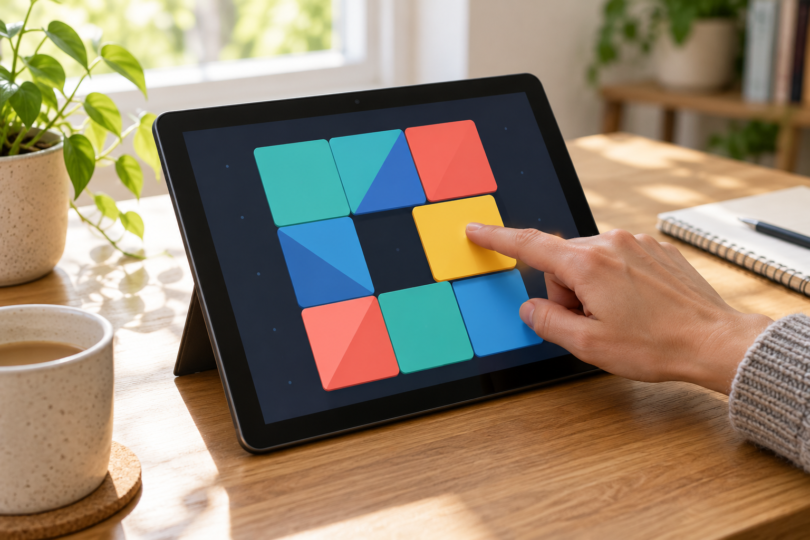
Microsoft Jigsaw offers Classic puzzles, the timed Jigsaw Jam mode and Daily Challenges. Classic mode lets you choose the number of pieces, zoom in and organize pieces in trays. Those controls make it a sensible fit for a tablet: start with fewer pieces if the screen feels crowded, then increase the difficulty when you can comfortably distinguish them.
Use the Microsoft Jigsaw listing from Xbox Game Studios. This is the base game and it offers in-app purchases. Check any additional purchase separately; a puzzle pack or other add-on is not required just because it appears alongside the game.
The current Store listing names Windows 10 version 19041.0 or higher and x86/x64 platforms, and its features explicitly mention touchscreen play. That does not establish a native Arm version. On an Arm-based tablet, open the listing on that device and check whether installation is supported before planning around it. On any tablet, confirm that dragging, zooming and selecting pieces feel manageable at your chosen display scaling.
3. Mini Metro: for strategy with a simple visual layout
Mini Metro asks you to connect stations, route trains and keep a growing city moving. Its clean map gives you a clear problem to work on without a busy 3D scene. Choose the scored Normal mode when you want pressure, or explore the Endless and Creative options if you prefer to experiment with a network. The challenge comes from how your lines cope as demand changes.
Get the Mini Metro base game on Steam, published by Dinosaur Polo Club. The storefront also promotes collections that include other games; select the standalone Mini Metro purchase if that is all you want. A mobile-store purchase is a different platform offer from the Windows edition.
For touch-only play, Mini Metro is the conditional choice here. A developer support reply confirms Windows touchscreen support, but that reply is older and does not validate every current tablet or driver. Keep a mouse or trackpad available and verify the current version on your device before relying on finger input. Steam’s user-defined “Touch-Friendly” tag alone is not a compatibility guarantee.
The game’s listed minimums include a 2GHz processor, 2GB RAM, Shader Model 4.0 graphics, DirectX 9.0c and 350MB of storage. Those are game requirements, not a complete allowance for Windows and Steam. The listing still shows older Windows versions, but Valve has ended Steam support for Windows 7/8/8.1 and for 32-bit Windows. Use a supported 64-bit Windows setup, allow additional space for the launcher and updates, and check your graphics hardware. No native Arm build is confirmed by the sources linked here.
Checks that matter before installing or buying
- Know your Windows platform. An Intel/AMD Windows PC and a Windows-on-Arm device can run different software paths. Microsoft says emulation runs many apps on Windows 11 Arm, but some games and drivers still have limitations.
- Separate touch from mouse input. A game that opens on a touchscreen is not automatically designed for fingers. Check dragging, menus and small targets, not just whether a tap registers.
- Read the exact store requirements. Processor, graphics, available storage and the launcher all matter. A familiar title or a “tablet” tag is not enough.
- Check what the button buys. Choose the base game, not a gift card, DLC pack or unrelated subscription. For a free-to-start game, review optional purchases before accepting them.
- Plan for your connection. Install and update before traveling, then check the mode you intend to use. Online challenges, account features and downloads can need connectivity.
Try Surf first if you want an immediate touch-controlled game inside Edge. Choose Jigsaw for assembling puzzles, after the Store confirms your device meets its requirements. Pick Mini Metro for deeper route-building decisions when you have a supported PC setup and a mouse backup. That is a more useful starting point than buying controllers or game credit before you know which game you want to play.
Frequently asked questions
Can I play Windows tablet games without a keyboard?
Yes, if the game supports a suitable input method. Microsoft documents touch controls for Surf and touchscreen play for Jigsaw. Mini Metro has older developer-confirmed Windows touch support, so keep a mouse or trackpad available and verify its behavior on your device.
Will these games run on a Snapdragon Windows tablet?
Start with Surf inside a supported Arm64 version of Microsoft Edge. Jigsaw lists x86/x64 platforms, and a native Arm version of Mini Metro is not confirmed here. Windows 11 Arm can emulate many apps, but game and driver compatibility must be checked separately.
Can I use an old 32-bit Windows tablet for Mini Metro on Steam?
It is not a supported Steam setup. Valve ended support for 32-bit Windows, even though 32-bit games can still run on supported 64-bit Windows. The game’s older operating-system minimum does not override the launcher’s requirements.
Do I need Game Pass or a subscription for this shortlist?
The choices here are the game built into Edge, Microsoft Jigsaw’s base game with optional in-app purchases, and the standalone Mini Metro purchase on Steam. A Game Pass membership is not the product being recommended. Review any optional add-on or recurring offer separately.
Does “Remote Play on Tablet” mean a game has native touch controls?
No. A remote-play label describes a way to stream a game; it does not establish that its Windows interface is designed for finger input. Look for explicit input documentation and verify the exact game version and device. Mini Metro’s touch guidance here relies on a developer statement, with its age clearly qualified.